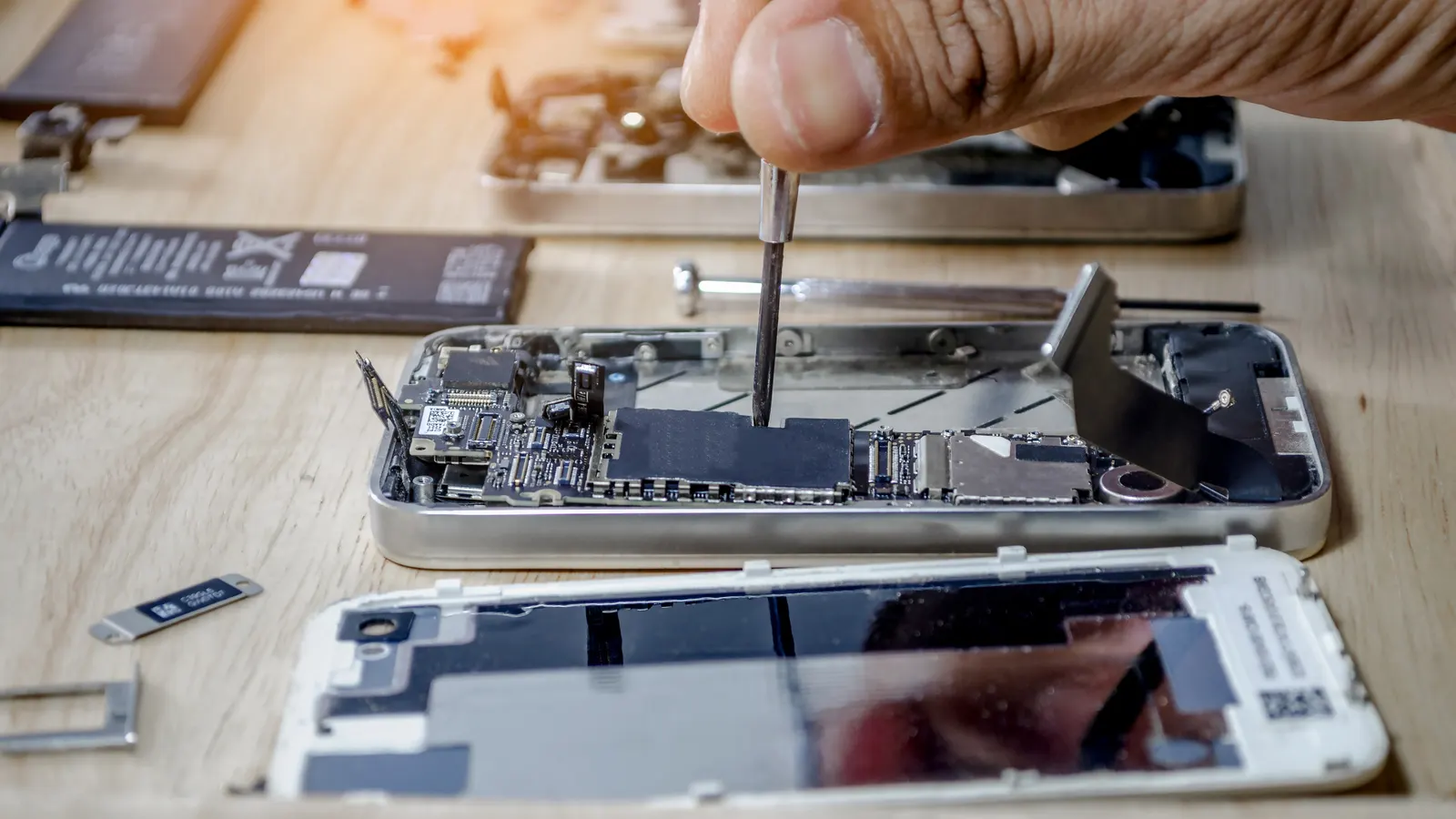

How to Extend the Life of Your Phone Battery
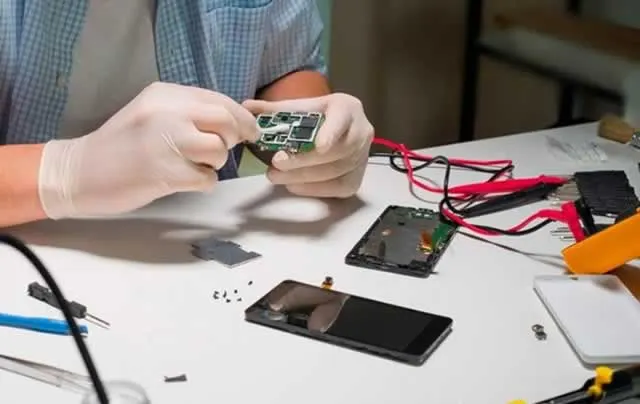
Phone batteries are consumable parts: their capacity and performance decline as they age. Charging habits and temperature can affect that process, but no setting can stop normal battery wear. Start with your phone’s own battery-health and usage screens. Apple’s battery guide explains how charging patterns and heat relate to iPhone battery lifespan.
Keep heat down
Heat is one of the practical factors you can influence. Apple advises iPhone owners to avoid using or charging their device in ambient temperatures above 35°C, as high temperatures can permanently reduce battery lifespan. Avoid leaving a phone in direct sun or a hot car. If your device displays a temperature warning or becomes unusually hot, pause demanding use and follow the manufacturer’s guidance for that model.
Charge for your routine
You do not need to wait for the battery to reach zero before charging. Apple says iPhone can be charged overnight and that Optimised Battery Charging reduces the time the phone spends fully charged. Other brands and models offer different charging controls, so check the manufacturer’s instructions rather than assuming one setting fits every device. Use a charger and cable that meet the device maker’s requirements, and replace damaged accessories.
Find avoidable drain
Open the battery or power section in Settings and review which apps use the most energy. If one app is unexpectedly high, check for updates and review its background activity. Lowering screen brightness, shortening the screen timeout or using the built-in battery-saver mode can help stretch a charge when you need it; choose the changes that do not get in the way of how you use your phone.
On supported iPhone models, Battery Health shows maximum capacity and can indicate when service is recommended. Menu names and available information differ across manufacturers and software versions. A sudden change in runtime, unexpected shutdowns or a battery warning is a reason to check the maker’s support guidance or ask for an assessment rather than relying on a percentage from a third-party app.
When to stop and ask for help
If the screen or back begins lifting, the device is physically damaged, or it becomes unusually hot, stop charging it and seek professional advice. Do not press the case flat, puncture the battery or try to open the phone. Google’s Pixel 7 safety guidance warns that using a physically damaged phone can create overheating or injury risks; follow the guidance for your own model.
For a battery-health or charging concern, contact Repair Lounge with the make, model and symptoms so the team can advise on the next step.
 15 Sept 2025Postal vs. Call-Out Repairs: Which One Is Right for You?
 15 Sept 2025The Truth About Data Safety During Tech Repairs
 15 Sept 20255 Signs Your Phone Screen Needs Replacing (Before It Gets Worse)